Most organizations use Microsoft 365 daily without asking a crucial question: Who is liable if emails, files, or Teams chats disappear? Microsoft itself provides a clear answer: The company guarantees the availability of its services but assumes no liability for the protection of your content. In its terms of service, Microsoft even explicitly recommends that you regularly back up your data using third-party services.
A dedicated backup solution can close this gap by combining native retention with genuine compliance requirements. This gives you the assurance that you can reliably restore your data after an accidental deletion, a ransomware attack, or a Microsoft data loss. This article will show you what to consider when backing up your Microsoft 365 account.
The Most Important Points in Brief
Under the shared responsibility model, Microsoft only guarantees platform availability, while data security and compliance remain entirely the responsibility of the user.
Native features such as the recycle bin or versioning do not offer a full replacement for a real backup due to time limitations and a lack of protection against ransomware synchronization.
A dedicated third-party backup effectively protects business-critical workloads such as Exchange, OneDrive, SharePoint, and Teams from data loss due to ransomware, accidental deletions, or insider threats.
The long-term and unalterable storage of cloud data is essential for companies to comply with legal requirements such as the NIS-2 directive and the GDPR.
What is Microsoft 365 Backup: Definition and the shared responsibility model
A modern Microsoft 365 backup software ensures you can restore critical data from Exchange, OneDrive, SharePoint, and Teams at any time. It creates secure, immutable backups that you can quickly restore after an accidental deletion, a ransomware attack, or another cyber threat. This goes far beyond what Microsoft's native retention features offer.
Microsoft's shared responsibility model provides the framework for this: The tech giant is responsible for the operation and availability of the services, as well as the security of the data centers. You, as the customer, are responsible for your data: its classification, protection, encryption, and adherence to your governance and compliance requirements. Microsoft ensures that the platform runs smoothly. Whether your content still exists after an incident is entirely up to you. The following infographic illustrates this:
Beware of fake "backup software"
Many teams mistake native retention features for a backup. The recycle bin only holds deleted items for a limited time of 30 days, offering no real protection. An archive is also generally of little help, as internal retention policies are for compliance, not rapid recovery. And file versioning is similarly limited and doesn't protect against widespread data loss. In short, none of these features replaces a complete, external backup of your data.
Why you need a Microsoft 365 backup: Risks and data loss scenarios
The strongest driver for backups is the specific scenarios in which data loss occurs. These happen more often than most organizations anticipate. Here are five typical cases you should be aware of:
1. Ransomware and the OneDrive sync trap
Ransomware doesn't just encrypt local files; it also exploits your own sync mechanism against you: Encrypted files are mirrored to the cloud via OneDrive synchronization, overwriting the clean versions there. What's intended as protection actually spreads the damage in real time. The version history often doesn't go back far enough to allow for a complete recovery. An independent backup is your only reliable way to recover your data.
2. Accidental deletion
Deleted files can only be recovered within a limited timeframe. Depending on the workload, this period is either 30 or 90 days; after that, the deletion is permanent. Since the loss of individual files is often only noticed after this period has expired, the built-in recovery function does not offer reliable protection. A backup eliminates this time limitation.
3. Insider threats
Not every threat comes from the outside. Frustrated employees, compromised admin accounts, or targeted mass deletions cause enormous damage from within, with legitimate access rights. Someone with admin privileges can empty entire mailboxes and sites. Microsoft's built-in tools offer little protection against someone who abuses them. A separate backup is beyond their reach.
4. Retention gaps after offboarding
When someone leaves the company, their license is deactivated, and their data is often deleted sooner than expected. The very content you need weeks later – an open project, customer correspondence, a calculation – is then gone. A backup preserves the data of departing users, regardless of their license status.
5. Compliance and legal obligations
GDPR, NIS-2, Microsoft's Litigation Hold, and industry-specific audit requirements mandate that you demonstrably retain certain data for defined periods. Microsoft 365's standard rules only partially address this. If you cannot provide the necessary evidence during an audit or legal dispute, you risk fines and liability. A dedicated backup with long-term, unalterable retention covers precisely these requirements. Our ISMS software category showcases tools that support you in complying with standards like ISO 27001 and NIS-2.
Let's summarize the most important scenarios once again:
Scenario
What happens
Impact
Ransomware via OneDrive sync
Encrypted files overwrite the clean cloud versions.
Data loss despite cloud storage
Accidental deletion
File permanently removed from the recycle bin after 30 to 90 days
Irrecoverable loss after the grace period has expired
Insider threat
Targeted deletion of frustrated employees or hijacked admin accounts
Large-scale, often intentional data loss
Gap after offboarding
Mailboxes and files of former users are deleted early
Loss of contracts, knowledge and project history
Compliance violation
Data cannot be demonstrably stored and restored
Fines, missing audit evidence, legal risk
Which Microsoft 365 workloads do you need to back up?
A full backup covers all four central workloads because each contains business-critical data:
Exchange Online encompasses emails, mailboxes, calendars, and contacts. This is where formal communication is stored, which you need to be able to prove in case of a dispute or audit. By default, Microsoft only retains deleted items for a limited time, often 14 days by default, and this is only configurable to a limited extent. Once this period expires, you have no protection, and long-term retention is completely absent.
OneDrive for Business stores users' personal work files and shared content. These are precisely the files that are most vulnerable to ransomware attacks via synchronization, because the encrypted versions overwrite the clean versions. While the Recycle Bin keeps deleted files for up to 93 days, versioning has limited effectiveness, and neither method replaces a backup.
SharePoint Online stores team sites, libraries, and version histories. It forms the backbone of collaboration and often contains a company's core documents. A user- and site-level recycle bin retains deleted content for up to 93 days. However, it does not allow for the complete recovery of entire sites.
Microsoft Teams may seem insignificant at first glance, but it contains chats, channels, files, and meeting recordings. Much of this content is technically distributed across SharePoint and Exchange, which is why you can only properly back up Teams together with these workloads. Microsoft does not natively offer a consistent, cross-channel restore.
Native Microsoft features vs. third-party backup
Microsoft now offers its own backup product, Microsoft 365 Backup. It scores points with its seamless integration into the platform and fast recovery within the same environment. However, its limitations lie in the restricted retention period, the lack of recovery across tenant boundaries, and the absence of an air gap. This means the backup remains tightly tied to Microsoft's own infrastructure. The following infographic illustrates the differences between the native and a third-party solution and serves as a basis for your decision:
Microsoft 365 Backup (native)
Third-party solution
storage
limited
long-term to indefinitely
Granularity
good within the platform
restoration down to individual objects
Cross-tenant restore
not planned
possible
Multi-client capability (MSP)
restricted
multi-client capable, delegated access
Insulation / Air gap
no air gap
isolated, immutable, encrypted
Audit trails
bound to the platform
independent
Pricing model
in Microsoft's licensing logic
per user or storage, depending on the provider
Source: OMR Reviews.
💡 Tip: The right approach depends on the size and structure of your organization. A smaller company with a single tenant can often get by with Microsoft's native solution. A mid-sized company with compliance requirements benefits from the long data retention and audit trails of a specialized solution. MSPs with many tenants need the isolated, multi-tenant architecture of a third-party provider, otherwise they would have to manage each customer's environment individually.
Selection criteria: What you should look for in an M365 backup solution
Before you decide on a solution, you should evaluate it using the following questions:
Does the solution cover all workloads and restore them granularly? Check if it covers Exchange, OneDrive, SharePoint, and Teams, and retrieves individual objects – a single email, a single file, or a single mailbox – without requiring a complete tenant reset.
How quickly and accurately does it restore data? Compare the Recovery Time Objective (RTO) and the Recovery Point Objective (RPO). Both metrics determine how much time and data an incident will cost you in a critical situation.
How long and how legally secure is your data stored? Look for long-term storage, legally compliant litigation hold, and unlimited historical versions. These are precisely the options that distinguish a true backup from mere temporary storage.
How is the security architecture structured? Immutable, isolated and encrypted backups, multi-factor authentication, role-based access control and anomaly detection protect your backup even if an attack hits your production environment.
Which architecture model suits you best? A cloud-native SaaS solution behaves differently than an on-premises appliance or a hybrid approach, both in terms of operation and costs. Clarify in advance what fits your infrastructure.
What does the solution really cost? Some providers charge per user, others per storage. Factor in hidden fees for data recovery or bandwidth usage, as these can significantly impact the overall cost.
Is it suitable for a Managed Service Provider (MSP)? A multi-tenant dashboard, delegated access, and white-label options determine whether you can efficiently manage many customers.
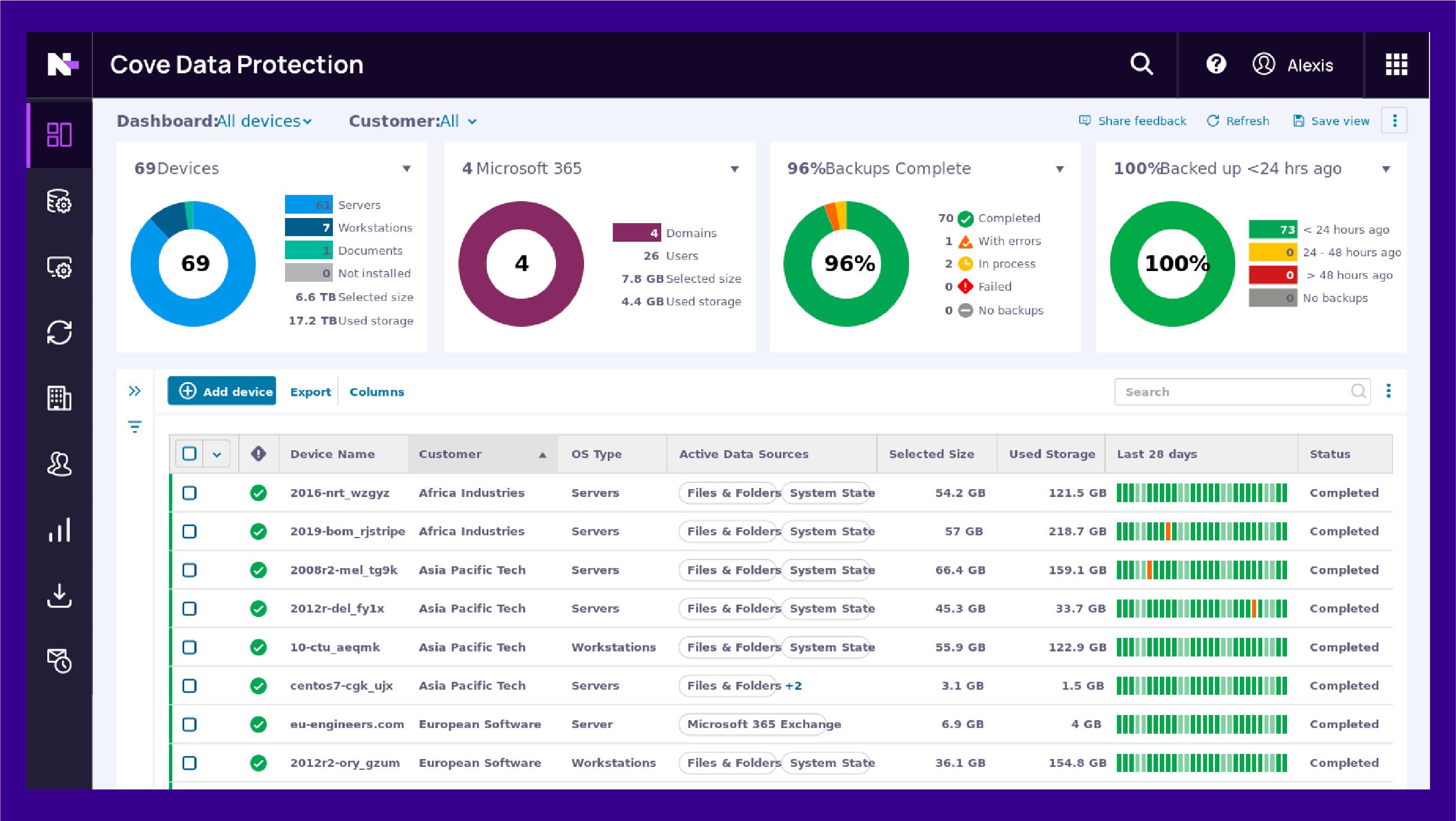
Software tip: Cove Data Protection by N-able
If you want to back up Microsoft 365 in a cloud-native way without your own backup servers, Cove Data Protection by N-able is worth considering. The solution is ideal for MSPs and IT teams of medium-sized businesses.
Cove Data Protection is a cloud-native data protection and recovery solution that simplifies backup, disaster recovery, and data security. At its core, the TrueDelta technology operates at the individual file segment level. This reduces Total Cost of Ownership (TCO), and IT teams can protect servers, workstations, and Microsoft 365 data from a single, multi-tenant platform.
Microsoft 365's native retention features are helpful in everyday use, but theydo not eliminate the most critical risks: ransomware via synchronization, permanent deletion after the grace period expires, and targeted attacks from within.
With increasing ransomware threats and stricter compliance requirements, a standalone Microsoft 365 backup software is becoming mandatory for more and more organizations. Since NIS-2 came into effect in Germany, even the law requires a functioning backup management system. Setting up a reliable backup tool like Cove Data Protection now ensures you have recovery security before a critical situation forces you to.
Nils ist Senior SEO-Texter bei OMR Reviews und im Content-Team die erste Adresse für KI-Themen. Er testet, wo sich Recherche, Analyse und Textproduktion automatisieren lassen, und baut die Workflows dafür selbst. Programmieren hat er nie gelernt. Das hält ihn nicht davon ab: Dank Vibe-Coding entsteht das meiste in Eigenbau. Abschalten geht trotzdem ohne KI, dann produziert er nämlich in Ableton Live Techno.
Dieser Artikel erscheint auf OMR Reviews – der führenden DACH-Plattform für B2B-Software-Bewertungen, Software-Vergleiche, Agenturen, Business Services und B2B-Tech-Content. Mit mehr als 80.000 verifizierten Bewertungen und 12.000+ gelisteten Tools hilft OMR Reviews Unternehmen dabei, passende Software-Lösungen und Dienstleister fundiert zu recherchieren, zu vergleichen und bessere Entscheidungen zu treffen.
Disaster Recovery Software is a type of application software specifically designed to assist organizations and businesses in preparing for and dealing with the aftermath of catastrophic events such as natural disasters, cyber attacks, technical malfunctions, or other unpredictable incidents. Its main purpose is to ensure business continuity by minimizing downtime and the loss of data and operational functions.
These software solutions cater to a wide range of users, including IT professionals, system administrators, risk managers, and business managers. They are essential in sectors that are heavily dependent on IT infrastructures, such as financial services, healthcare, government organizations, and e-commerce platforms.
The use of Disaster Recovery Software takes place in various areas, including the planning and implementation of emergency recovery plans, the regular review and updating of these plans, the performance of disaster recovery exercises, as well as the monitoring and reporting in case of an emergency.
To be included in the Disaster Recovery Software category, a solution should have the following features and properties:
* Automated Data Recovery: The ability to quickly and reliably reset data to previously defined recovery points.
* Redundancy and Failover Mechanisms: Systems that ensure continuous availability and accessibility of data, even in the event of failures of individual components.
* Planning and Testing Tools: Functions that facilitate the creation, management, and testing of emergency plans.
* Real-Time Monitoring and Alerting: Tools for monitoring system performance and immediate notification of potential threats or failures.
SaaS Backup Software helps companies securely back up, restore, and retain data from cloud-based software-as-a-service applications. This includes data from email systems, collaboration tools, CRM platforms, office applications, and business messaging solutions. The software is primarily used by IT teams, data protection officers, compliance managers, and administrators who need to protect business-critical information from accidental deletion, cyberattacks, outages, synchronization errors, or data corruption.
Unlike traditional backup software, which often focuses on local systems, servers, or endpoints, SaaS Backup Software is specifically designed for data created and stored within SaaS applications. Organizations use it to automate backups, recover individual files, messages, folders, or records, and comply with internal or regulatory retention requirements. Many solutions provide deep integrations with specific SaaS ecosystems and can be embedded into broader backup, disaster recovery, or data protection strategies.
To be included in the SaaS Backup Software category, a solution should provide the following features and capabilities:
- Integration with relevant SaaS applications for data backup
- Automated backups of data from supported cloud applications
- Granular recovery of individual files, folders, emails, or records
- Security and compliance features such as encryption, role-based access, or audit logs
- Flexible backup storage in vendor clouds, third-party cloud environments, or on-premises infrastructure
PC Backup Software refers to programs and services designed to secure and protect data from personal computers (PCs). This type of software is essential for individuals and businesses to preserve important information from loss due to hardware failures, software issues, virus attacks, or other forms of data corruption.
The target audience for PC Backup Software is broad and includes both private users and businesses of all sizes. In the private sector, it is used to protect personal data such as documents, photos, and emails. In businesses, it is used to secure business-critical data such as customer information, financial data, and proprietary research data.
In various sectors, PC Backup Software is applied differently. In the education sector, teaching materials and administrative data are secured, in the healthcare sector patient records and medical research data. In the IT industry, it is indispensable for securing development projects and corporate databases.
The software typically works by creating copies of the data on external storage media such as hard drives, cloud storages, or other network devices. Modern solutions often offer automated backup routines that can be scheduled or run in real-time.
To be included in the PC Backup Software category, a solution should have the following features and properties:
* Automated Backups: The ability to plan and automatically execute backup processes.
* Encryption and Security: Strong encryption standards to protect the data from unauthorized access.
* Cloud Backup Options: Integration with cloud storage services for an additional storage layer and remote access.
* Incremental and differential backups: Efficient backup by storing changes since the last full backup.
Join the OMR Reviews community to not miss any news and specials around the software seeking landscape.